Grok OpenDesign

Design With
Grok in
OpenDesign.

How to design interfaces with Grok Build in OpenDesign: an event poster as the reference, a plan before any change, one landing-page task from brief to reviewed file, and the limits to know before you start.

On This Page Example
  1. Example
  2. Fit
  3. Compatibility
  4. Setup
  5. Workflow
  6. Resources
  7. Limitations
  8. FAQ

One Complete Grok Design Task

One Grok Task: Brief, Artifact, Review

The page walks one task through the brief and constraints you hand over, the artifact Grok returns, and the checks that remain before you call it done. The interface shown below was built as an example for this page, not captured from a real Grok run.

1Design Brief and Constraints

Brief

Using the attached poster image, design a landing page for a two-day developer conference: date and venue, schedule teaser, speakers, and a ticket call to action. Cover desktop and phone.

  • Design systemOpenDesign paper canvas: Albert Sans, one green accent
  • Breakpoints1440px for desktop and 390px for mobile, with no horizontal scroll
  • InteractionsTicket CTA, a schedule day switch, and speaker cards
  • OutputOne self-contained HTML file with stable data-od-id hooks

2Who Does What: You, Grok, OpenDesign

  • You

    Your job: write the brief, choose the design system, and set the acceptance criteria.

  • Grok

    Grok plans the layout, writes HTML, CSS and JavaScript, then revises on request.

  • OpenDesign

    OpenDesign supplies the design system and skill, renders the preview, and saves each version as a project file.

  • Review

    Before handoff, you check visual hierarchy, spacing on the 8px grid, both breakpoints, and each interaction.
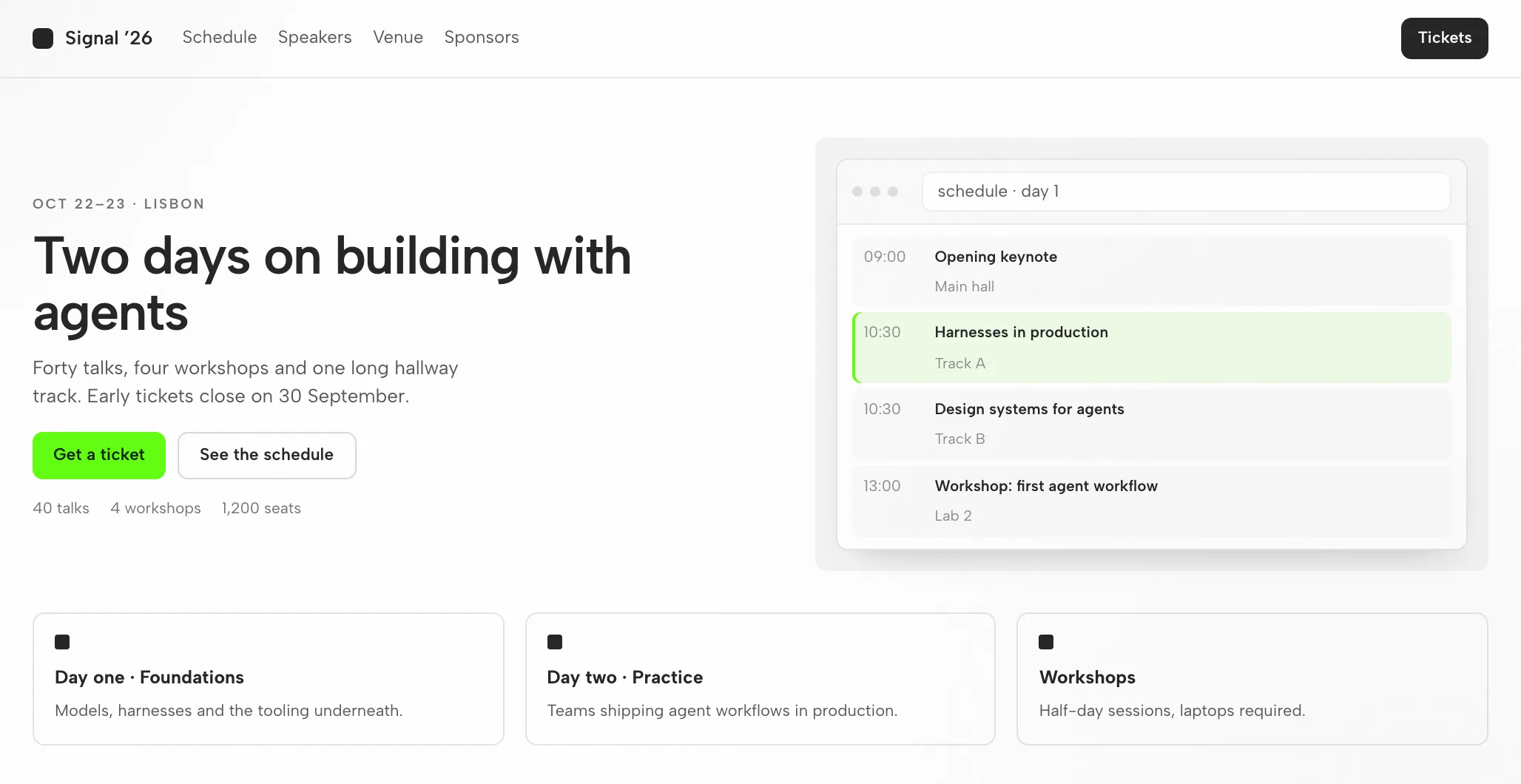
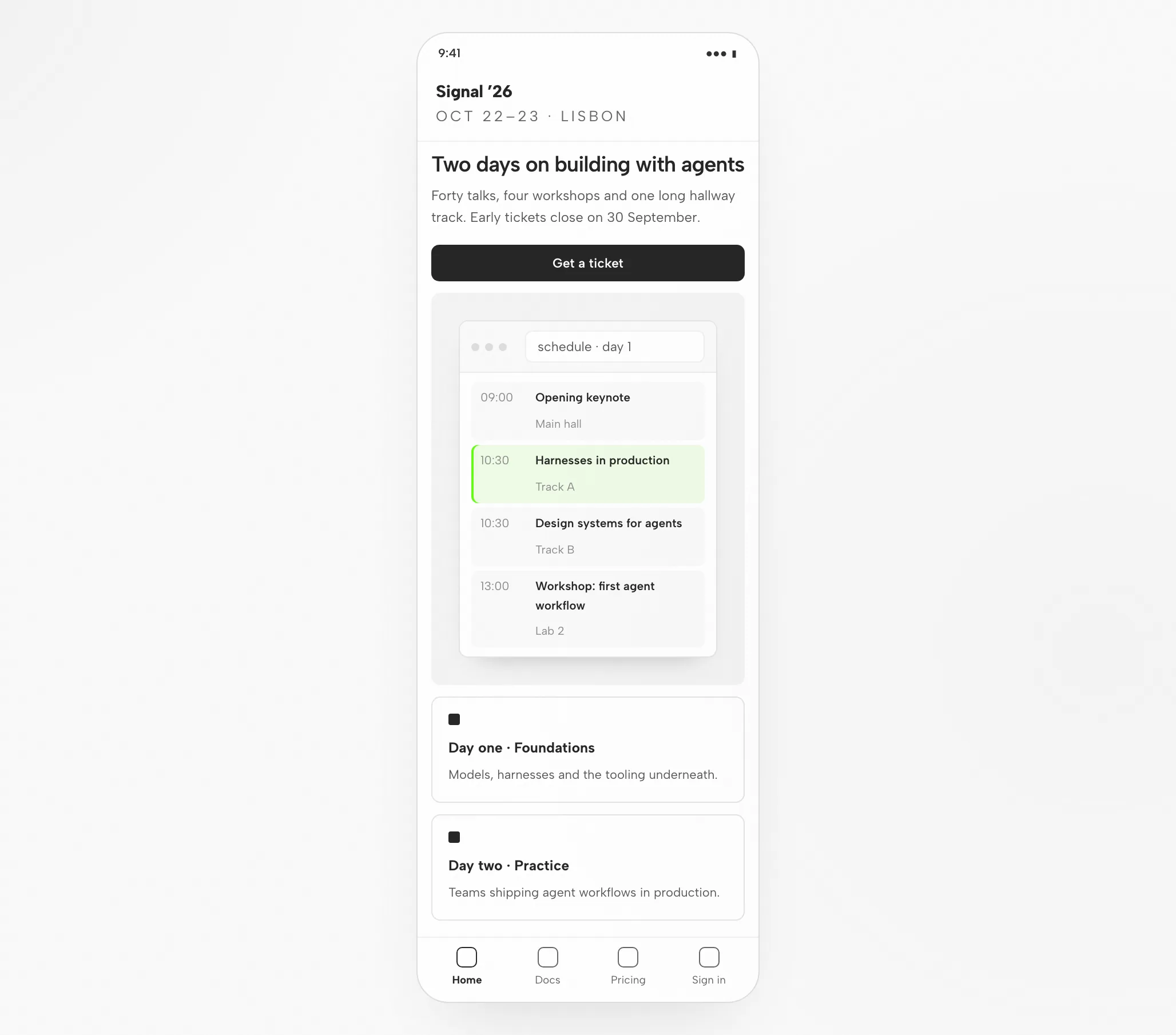
3Grok Artifact: Event Page at 1440px and 390px

Grok Artifact: Event Page at 1440px and 390px — Desktop
Illustrative example

4Review Before Handoff

Layout

Grid and Spacing

Hero, tracks and proof align to the 8px grid; poster art is cropped rather than squeezed.

Hierarchy

Visual Hierarchy

Date and title lead, the ticket button follows, and the accent appears on that button alone.

Responsive

Mobile Layout

Title, date and ticket button sit above the art; tracks stack in sequence.

Interaction

Interaction Checks

Open the ticket flow, switch schedule days, and follow one speaker card.

Fit

Where Grok Fits — and Where It Doesn’t

Grok Fits When

  • Image-aware screenshot → UI. Grok models take image input, so a reference image can become responsive markup and the result can be checked against it.
  • Plan mode before changes. Grok drafts a structured plan for your approval before files change, letting design intent be reviewed up front rather than after the diff.
  • AGENTS.md + MCP. Your conventions live in context files, while the Figma MCP server pulls real design context into the code.
  • Sign in with your account. Use OAuth through SuperGrok or X Premium+, or supply an xAI API key (BYOK) for headless use.

Choose Another Workflow When

  • You need editable vector files. Grok’s artifact is HTML, not an editable design document; use a separate vector workflow for that asset format.
  • You have no reference and no constraints. With no design system or examples, output tends toward a generic look — write the brief first.
  • You do not have the credential this agent needs. Required: xAI SuperGrok OAuth (`grok login`). OpenDesign neither provides nor proxies credentials.
  • Your team works in Hermes or Codex. Those agents have their own pages; setup differs even though the workspace is shared. See related agents.

Compatibility

Grok Requirements Before You Start

The scope here is Grok connected through the OpenDesign desktop app. Published references were checked on 6 September 2026.

Tool ScopeGrok, by xAI

Grok Build is xAI's terminal coding agent, shipped under the name Grok Build. It can read your codebase, edit files, run shell commands, and plan multi-step engineering work before acting. This page covers interface design with Grok through OpenDesign, not Grok’s own interface. OpenDesign’s setup notes list the available agents.

Accounts and AuthenticationxAI SuperGrok OAuth (`grok login`)

xAI SuperGrok OAuth (`grok login`). Sign in with a SuperGrok account or an xAI API key (BYOK); credentials remain on your machine. No quota or price is promised here.

System and VersionsDesktop app or source

For desktop builds, check the download page. The Node.js and pnpm requirements in the source quickstart apply only when running from source, not when installing a desktop package. Minimum compatible Grok version: not verified here.

Connection CheckThe success signal

Use the connection instructions your installed version shows, then try a small task. Make sure Grok handled it and the artifact opens; downloading alone does not prove a working connection.

Start with the desktop app

Grok Setup in Three Steps

Start with the download, finish Grok setup for the version you installed, then inspect a small result. You do not need to build OpenDesign from source for this route.

  1. 1

    Download the OpenDesign Desktop App

    Pick the package for your machine, install it, and launch the app.

    Download OpenDesign
    CHECKPOINT
    The desktop app launches. Already installed? Continue to the next step — no second download needed.
  2. 2

    Prepare Your Grok Connection

    Use the Grok instructions shown in your installed version. Authenticate with a SuperGrok account or an xAI API key (BYOK); credentials never leave your machine.

    xAI models documentation
    # 1. Install Grok Build (Grok Build) on macOS/Linux
    curl -fsSL https://x.ai/cli/install.sh | bash
    
    # 2. Start it in your project and authenticate on first run
    cd your-project
    grok login   # opens your browser; sign in with SuperGrok / X Premium+
    #   or, for headless / CI use, set an xAI API key:
    #   export XAI_API_KEY=xai-...

    Source: the Grok setup notes in the published guide; confirm the current command in the vendor documentation.

    CHECKPOINT
    Verify the intended agent and account. If either is unavailable, review compatibility before attempting a larger task.
  3. 3

    Run One Small Grok Task

    Keep the first brief modest so you can judge the full loop, including one revision.

    Starter brief

    Create a settings screen with a profile form and save confirmation. Follow my design rules. Verify it at desktop and mobile widths.

    CHECKPOINT
    Open the result, exercise the save state, and ask for one precise change. The generated file opens the review; it does not finish it.

For running OpenDesign from source, use the technical quickstart instead.

The Grok design workflow

Five Steps of a Grok Build Design Task

Follow one event-page task from brief to checked file. Every step names your input, Grok’s move, OpenDesign’s part and the check you run.

  1. 1

    Design Brief

    Keep it to a few plain lines — three to six. State who the screen is for, what it must do and which platforms matter.

    • YouDraft the brief and attach a reference screenshot when available.
    • GrokParses the brief and the project’s AGENTS.md instruction file; raises a question if a detail is unclear.
    • OpenDesignSupplies the project, the prompt box and the skill matched to the artifact type.
    • CheckMake sure the brief spells out acceptance criteria. Settling them before generation costs less than repairing later.
  2. 2

    Design Constraints

    A design system plus a handful of firm rules. That combination keeps output on-brand instead of defaulting to a generic look.

    • YouChoose a design system, then specify breakpoints and any components that must appear.
    • GrokPulls DESIGN.md tokens and posture rules into context before writing any markup.
    • OpenDesignProvides the design-system library and wires your selected system into the skill template.
    • CheckCheck that tokens match the brand: one accent, the intended fonts, the correct radius.
  3. 3

    Generate the Interface

    Grok Build produces one self-contained HTML file — layout, styles, interactions and stable hooks.

    • YouWait for the plan or answer a clarifying question. There is nothing to configure.
    • GrokDrafts the section plan, writes HTML, CSS and JavaScript, runs the file and repairs failures.
    • OpenDesignStores the artifact in the project folder and indexes it for preview.
    • CheckHold off. Evaluate the rendered file, not the source.
  4. 4

    Preview

    OpenDesign renders the file at the widths you specified. This is the moment design decisions get judged.

    • YouChange viewport widths, exercise each interaction and attach comments to specific elements.
    • GrokReads your preview comments and prepares the next revision.
    • OpenDesignRenders the preview, making data-od-id targets available for comments and edits.
    • CheckCheck hierarchy, contrast, overflow at 390px, focus states and whether the accent stays restrained.
  5. 5

    Revise and Verify

    Ask for changes by pointing at elements in the preview. Each revision becomes a new file; nothing gets overwritten quietly.

    • YouConvert comments into requests and decide when the task is finished.
    • GrokApplies changes in place and runs the file again.
    • OpenDesignKeeps versions side by side and exports an image or the HTML when you finish.
    • CheckRe-check just the changed area, then the full page once per breakpoint.

Resources

Grok Design Resources

Limitations

Grok Limits, Manual Checks and Fallback Paths

  • ScopeThis page treats Grok as an agent connected to OpenDesign; it does not cover every Grok feature.
  • Usage LimitsUsage limits and cost track the credential you use (xAI SuperGrok OAuth (`grok login`)). No claim about free quotas appears here.
  • NetworkKeeping project files local does not make inference offline. Check your agent’s provider settings and data policies before supplying sensitive inputs.
  • Output Is HTMLThe artifacts are HTML files, not vector design files.
  • Manual ReviewYou review accessibility, real content, brand fit and interaction correctness in the preview. Treat the agent’s own check as only a first pass.
  • FallbackWhen the agent is unavailable or a task fails, consult your installed version’s connection instructions and authentication. Keep the error and the last working artifact before altering configuration.

FAQ

Common Questions About Grok and OpenDesign

Can Grok Build Really Do Design Work?
Yes — with an aesthetic skill, a design system, and real reference images in context, Grok Build produces production-quality, responsive UI, and its image-aware Grok models help verify output against references. Without that context it tends to default to a generic look, which is the gap OpenDesign fills.
How Do I Authenticate Grok Build?
You sign in through your browser with a SuperGrok or X Premium+ subscription (`grok login`), so there is no API key to manage. For headless or CI use you can bring an xAI API key instead. OpenDesign never proxies your credentials either way.
What Makes Grok Build Good for Design Specifically?
Two things: its plan mode lets you review the approach before any change lands, and its Grok models accept image input, so it reads reference screenshots well. Both help — but taste still comes from the design system, skill, and references you supply.
Grok Build or Claude Code for Frontend Design?
Both are strong. Claude Code is known for specific, codebase-aware design decisions; Grok Build's edge is plan-mode review and image-aware xAI models. Many teams use both — OpenDesign lets you switch agents without changing your design workflow.
How Do I Connect Grok Build to Figma?
Add the Figma MCP server to your MCP configuration. Grok can then pull real design context — components, variables, layout data — so the generated code matches the source instead of approximating it.
What Grok Build actually is
Grok Build is xAI's terminal coding agent, shipped under the name Grok Build. It reads your repository, edits files, runs shell commands, and plans multi-step engineering work from natural-language tasks rather than just completing lines. It is built around xAI's Grok models — exposed on the xAI API as the grok-build model family — and authenticates through your xAI account, so the agent and the models come from the same vendor.

For design work, two properties stand out. It has a plan mode that drafts a structured approach you can approve, comment on, or rewrite before any change lands — a useful gate when you are iterating on UI. And its Grok models accept image input, so you can hand it a reference screenshot and it reasons about the actual layout instead of guessing from a prose description.

Context files: Grok Build reads an AGENTS.md file for persistent project context — the natural place to encode your design conventions, tokens, and review checklists. It follows the same open AGENTS.md convention that Codex and other agents use.

Tools, MCP + subagents: It edits files, runs shell commands, and supports MCP servers to add external context like a live Figma file; for larger tasks it can delegate to parallel subagents that research, build, and review at once.

Sign in with your account: You authenticate by signing in through your browser with a SuperGrok or X Premium+ subscription; you can also bring an xAI API key for headless and CI use.

Credential: xAI SuperGrok OAuth (`grok login`), or an xAI API key (BYOK) for headless use

Models: xAI Grok models (the grok-build family on the xAI API), with image input

Vendor: xAI
Why plan mode and image-aware models fit design
Grok Build's design edge comes from two properties — but, as with every agent, taste still has to be supplied.

Image-aware reasoning: Because Grok models accept image input, the agent reads reference screenshots — comparing its rendered output back to an image instead of guessing from a prose description.

Plan mode before changes land: Plan mode drafts a structured approach you approve before files change, so design intent is reviewed up front instead of discovered after the diff.

Conventions in AGENTS.md: An AGENTS.md (plus the Figma MCP server) points the agent at your tokens, components, and real specs, so it works against a brand instead of a default look.

Taste comes from three inputs you provide: a design system, a skill, and real reference images.

The lesson is the same one every agent teaches: Grok Build does not have taste by default. It produces good design when you give it constraints — a design system, an aesthetic skill, and concrete references. OpenDesign packages exactly those inputs, which is why the two fit together (more below).
Set up Grok Build for design work, from zero
The setup sequence: install → authenticate → configure AGENTS.md → add a skill → enable browser verification.

Encode your design rules: Put your tokens, primitives, and conventions in AGENTS.md and point Grok at them, so output matches a brand instead of defaulting to a generic look.

Add browser verification: Wire a Playwright or browser MCP so Grok renders in a real browser and checks its output across breakpoints instead of only confirming the build passes.

Use the current setup section for commands and version-specific details, which may change.

# 1. Install Grok Build (Grok Build) on macOS/Linux curl -fsSL https://x.ai/cli/install.sh | bash # 2. Start it in your project and authenticate on first run cd your-project grok login # opens your browser; sign in with SuperGrok / X Premium+ # or, for headless / CI use, set an xAI API key: # export XAI_API_KEY=xai-... # 3. Add project context # create an AGENTS.md at the repo root with your design conventions # 4. Wire the Figma MCP server (optional, for design handoff) # add it to your MCP server configuration
Historical command example from the previous guide; verify current syntax in the linked vendor documentation.
Turning a screenshot into UI
The highest-leverage design loop with Grok Build is turning a reference image into working, responsive UI and iterating until it matches — leaning on plan mode to agree on the approach and the image-aware model to compare output back to the reference.

Start from the clearest visual references you have — and include multiple states (desktop and mobile, hover, empty, loading), not just one hero shot.

Be specific in the prompt; vague prompts produce generic UI even with a strong model.

Keep your design system and conventions in AGENTS.md, and tell Grok where the tokens and canonical primitives live.

Use plan mode to review the approach, then run a dev server and have Grok render in a real browser, resizing to breakpoints to check the result.

Iterate by having Grok compare its implementation back to the screenshots — not merely confirm it builds.

Attach your reference images and give concrete constraints:

Keep prompts small and focused, commit good iterations and revert bad ones (telling Grok when you revert), so each pass builds on a clean base.

grok # in the prompt (attach reference-desktop.png and reference-mobile.png): > Implement this design in React + Vite + Tailwind + TypeScript. Reuse my existing design-system components and tokens from AGENTS.md. Match spacing, layout, and hierarchy; make it responsive. Show me the plan first, then render it in the browser and iterate until it matches the references across breakpoints.
Historical command example from the previous guide; verify current syntax in the linked vendor documentation.
AGENTS.md, MCP, and subagents
Three extension points make Grok Build practical for sustained design work, and all three map cleanly onto an open design workflow.

AGENTS.md context: Project rules live in an AGENTS.md at the repo root. It is the durable home for your design conventions, read on every run — and it is the same open format other agents understand, so the rules travel with you.

MCP servers: Configure MCP servers to bring in design context and external tools, most relevantly the Figma MCP server — the portable way to feed real specs into code, that works across agents, not just Grok.

Subagents and built-in tools: Grok Build can spawn parallel subagents to research, build, and review at once, and its file, shell, and search tools let it gather references and run the verification loop without leaving the terminal.

These are portable, multi-agent capabilities — exactly the kind of thing OpenDesign is built to orchestrate, rather than re-create per project.
Grok Build vs Codex vs Claude Code vs Cursor vs Gemini CLI for design
There is no single winner for design work — each agent has a different strength, and experienced teams stack them. A fair summary:

Grok Build — Plan-mode review before changes land, image-aware Grok models, and parallel subagents; signs in with your SuperGrok account — Reviewed, plan-first UI builds with xAI models in the loop

Codex — Strong visual polish with a frontend skill; sandboxed async builds — Delegated async builds and portable AGENTS.md rules

Claude Code — Specific design decisions (hex, spacing, type) and codebase-aware UX — Frontend reasoning and large-context refactors

Cursor — Visual build-and-see loop with live preview and inline edits — Tight iterate-and-watch UI work inside an IDE

Gemini CLI — Strong multimodal image understanding and a very large context; open-source with a free tier — Screenshot-heavy work and holding a whole design system in context

The recurring community verdict is that taste comes from humans: all of them default to a generic aesthetic without skills, references, and constraints. That is the real problem to solve — and it is design-tool-shaped, not model-shaped.

Agent — Design strength — Best for
Pitfalls, and how to avoid the “AI slop” look
The most common complaint about AI-generated design is that it looks generic — soft gradients, floating panels, oversized rounded corners, dramatic shadows, an Inter-and-purple vibe that “screams an AI made this.” Other reported issues include broken mobile layouts and instructions leaking into UI copy. None of these are unique to Grok Build; they are what happens when any agent runs without a curated design context.

Add an aesthetic skill: A curated design skill forces the agent to commit to a real direction instead of the default look.

Verify in a real browser: Render and self-check across breakpoints so layouts do not silently break on mobile.

Supply tokens and references: Real design tokens and reference screenshots are the single biggest lever on output quality.

Encode rules in AGENTS.md: Put “no hero cards, max two typefaces, brand-first hierarchy” style rules where the agent reads them every run.

Notice that every mitigation is about giving the agent a curated design context. Maintaining that context by hand, per project, is the toil OpenDesign removes.
Designing with Grok Build inside OpenDesign
OpenDesign is the open-source design layer the workflow above keeps asking for. It treats Grok Build as a first-party adapter and wraps it in a curated skill and design-system library, a structured render pipeline, and a local desktop UI — so the design context that makes Grok good is there from the first run, not assembled by hand each time. OpenDesign is independent and Apache-2.0, and it runs on your own machine, which makes the pairing a natural fit.

Authenticate with your SuperGrok account or an xAI API key (BYOK) — credentials stay on your machine and are never proxied through us.

Pick a design system and a skill, then generate decks, prototypes, and landing pages with consistent taste.

Every artifact and DESIGN.md file lives in your own repo, not a hosted cloud.

Same Grok Build agent, same credentials — plus a real, portable, open-source design workflow around it. It is local-first and Apache-2.0, so nothing about your work or your credentials leaves your machine.

Install OpenDesign and select Grok Build as your agent.
Is OpenDesign affiliated with xAI?
No. OpenDesign is independent; Grok is a trademark of xAI.