FURTHER READING
Further Reading for Kiro
Tutorials, documentation and walkthroughs for Kiro design work, as collected in the published guide.


 Kiro
Kiro  OpenDesign
 How to design interfaces with Kiro in OpenDesign: a spec before any code, steering files for copy and error handling, one checkout task from brief to reviewed file, and the limits to know before you start.
THREE STARTING POINTS FOR KIRO
This guide covers a brief, references, design rules, and a reviewed HTML result.
Read this guide SETUPThe full path from a clean machine to a Kiro CLI that builds and verifies UI.
Go to setup COMPARISONHow Kiro stacks up against Codex, Claude Code, and Cursor for design work—and when to choose another workflow.
See the comparisonOne Complete Kiro Design Task
One task, taken from start to finish: the brief and constraints you hand over, the artifact that returns, and the checks you run before calling it done. The interface below is an illustrative example built for this page, not a recorded Kiro run.
BriefDesign a two-page checkout based on the attached spec: shipping and payment, with an order summary that remains visible. Use the steering files for copy and error handling. Desktop and phone.
data-od-id hooksWrite the brief, choose the design system, and define acceptance criteria.
Plans the layout, writes the HTML, CSS, and JavaScript, and revises on request.
Supplies the design system and skill, renders the preview, and stores each version as a project file.
Before handoff, check visual hierarchy, spacing on the 8px grid, both breakpoints, and every interaction.
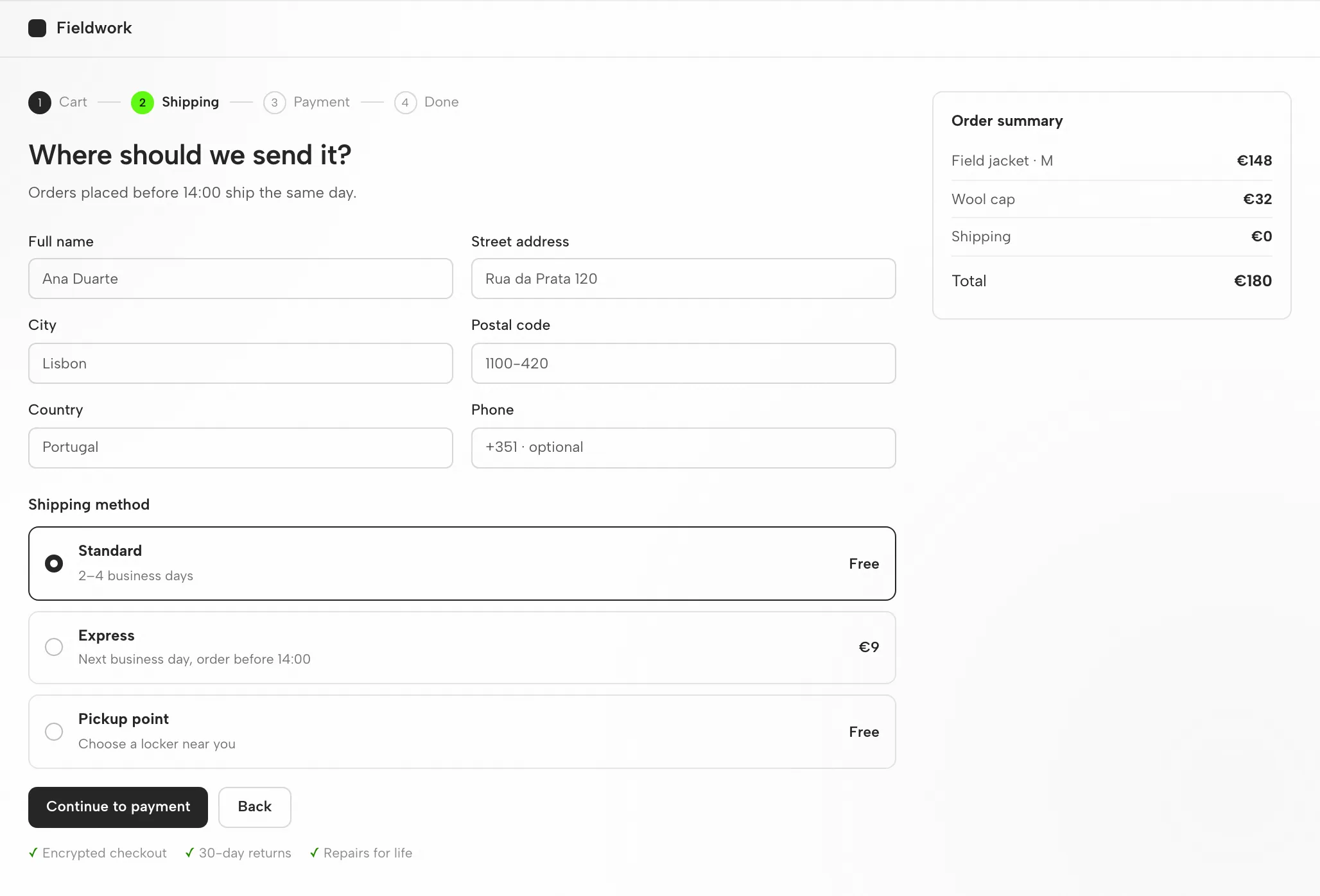
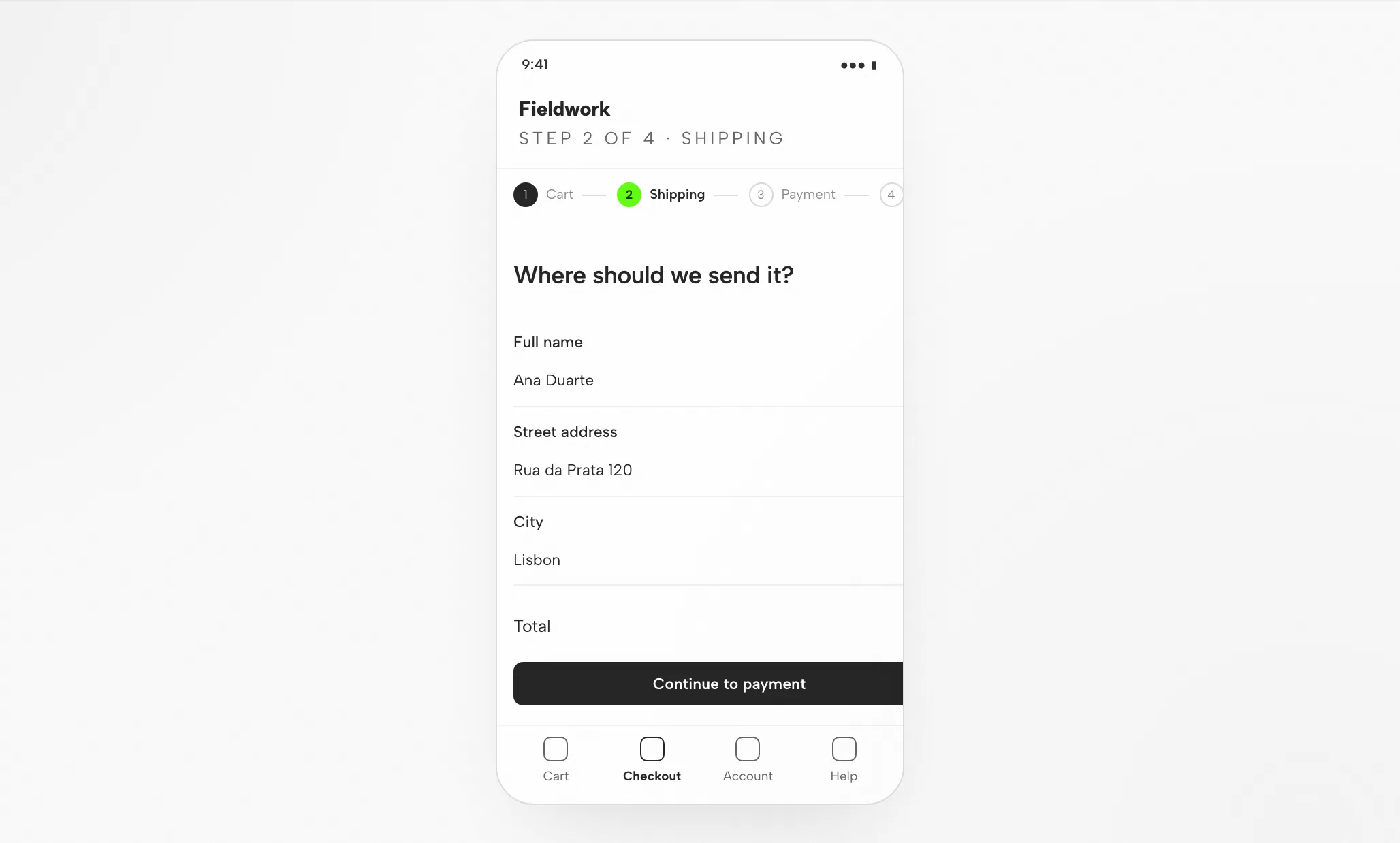
Form and summary aligned to the 8px grid; summary sticks on desktop and collapses on phone.
Question, then fields, then button; the accent highlights only the current step.
Summary collapses to a total line above the form; the button spans full width.
Trigger an address error, apply a promo code, and return to cart.
Fit
Compatibility
This guide focuses on Kiro connected through the OpenDesign desktop app. Published references checked on 6 September 2026.
Kiro is an agentic AI from Amazon (AWS), available as an IDE, CLI, and web interface, designed for spec-driven development from prototype to production. It is in preview. This page covers designing interfaces with Kiro via OpenDesign, not Kiro’s own interface. OpenDesign’s setup notes list the available agents.
Authentication options: AWS Builder ID, Google, GitHub, or AWS IAM Identity Center (no AWS account required). Sign in with your AWS Builder ID or other method—credentials remain on your machine. This page makes no promise about quotas or pricing.
See the download page for desktop builds. Node.js and pnpm requirements in the source quickstart apply only to running from source, not to installing a desktop package. Minimum compatible Kiro version: not verified here.
Follow the connection instructions from your installed version, then run a small task. Confirm Kiro handled it and the artifact opens. A download alone does not guarantee a working connection.
Start with the desktop app
Start by downloading, complete the Kiro setup for your installed version, then verify a small result. Building OpenDesign from source is not required for this path.
Select the package for your computer, install it, and open the app.
Download OpenDesignFollow the Kiro instructions provided in your installed version. Authenticate with your AWS Builder ID or other sign-in—credentials stay on your machine.
Kiro CLI documentation# 1. Install Kiro CLI (see kiro.dev/docs/cli for the macOS/Linux/Windows command)
# 2. Authenticate — opens your browser to complete sign-in
kiro-cli login # choose Builder ID, Google, GitHub, or your organization
# 3. Confirm you are signed in
kiro-cli whoamiFrom the Kiro setup notes in the published guide; see the vendor documentation for the current command.
Start with a compact brief so you can judge the whole loop, including one revision.
Build a settings screen with a profile form and save confirmation. Use my design rules. Verify at desktop and mobile widths.
For running OpenDesign from source, refer to the technical quickstart instead.
The Kiro design workflow
One checkout task traces the path from your brief to a verified file. Each step shows what you provide, what Kiro does, what OpenDesign contributes and what you check.
Keep it plain: three to six lines naming the audience, the screen's job and the platforms.
A design system plus a few firm rules. That combination keeps output on-brand instead of generic.
Kiro produces a self-contained HTML file: layout, styles, interactions and stable hooks.
The file renders inside OpenDesign at the widths you requested. This is where design judgment happens.
data-od-id targets for comments and edits.Request changes by pointing at elements in the preview. Every revision is a new file; nothing is overwritten silently.
Resources
Tutorials, documentation and walkthroughs for Kiro design work, as collected in the published guide.
Artifact types Kiro can produce in OpenDesign, one skill per type.
Brand tokens and components to bind before Kiro generates anything.
Launch points for decks, landing pages and product screens.
Limitations
FAQ
# 1. Install Kiro CLI (see kiro.dev/docs/cli for the macOS/Linux/Windows command)

# 2. Authenticate — opens your browser to complete sign-in
kiro-cli login   # choose Builder ID, Google, GitHub, or your organization

# 3. Confirm you are signed in
kiro-cli whoami
# 4. Start an interactive session in your project
cd your-project
kiro-cli chat
# 5. Wire MCP servers (optional, e.g. for design handoff)
kiro-cli mcp add ...kiro-cli chat
# in the prompt:
> Here are my references: reference-desktop.png and reference-mobile.png.
Write a spec, then implement this design in React + Vite + Tailwind + TypeScript.
Reuse my existing design-system components and tokens (see my steering files).
Match spacing, layout, and hierarchy; make it responsive.
Render it in the browser and iterate until it matches the references
across breakpoints.