FURTHER READING
Further Reading for DeepSeek Harness
Tutorials, docs, and step-by-step walkthroughs for designing with DeepSeek Harness, as listed in the published guide.


 DeepSeek Harness
  OpenDesign
 How to design interfaces with DeepSeek Harness in OpenDesign: a reusable console profile, skills and provider choice, one admin users table from brief to reviewed file, and the limits to know before you start.
THREE DEEPSEEK HARNESS STARTING POINTS
The path here runs from brief and references through design rules to an HTML result you review.
Read this guide SETUPNo preinstalled Node.js, pnpm, or dsh is required. Run the one-line installer for your operating system: it installs the DeepSeek Harness…
Go to setup COMPARISONWhere DeepSeek Harness stands apart from DeepSeek TUI (`deepseek` / `codewhale`), OpenCode, and Claude Code for design tasks—and when another workflow is the better pick.
See the comparisonDeepSeek Harness Design Task in Full
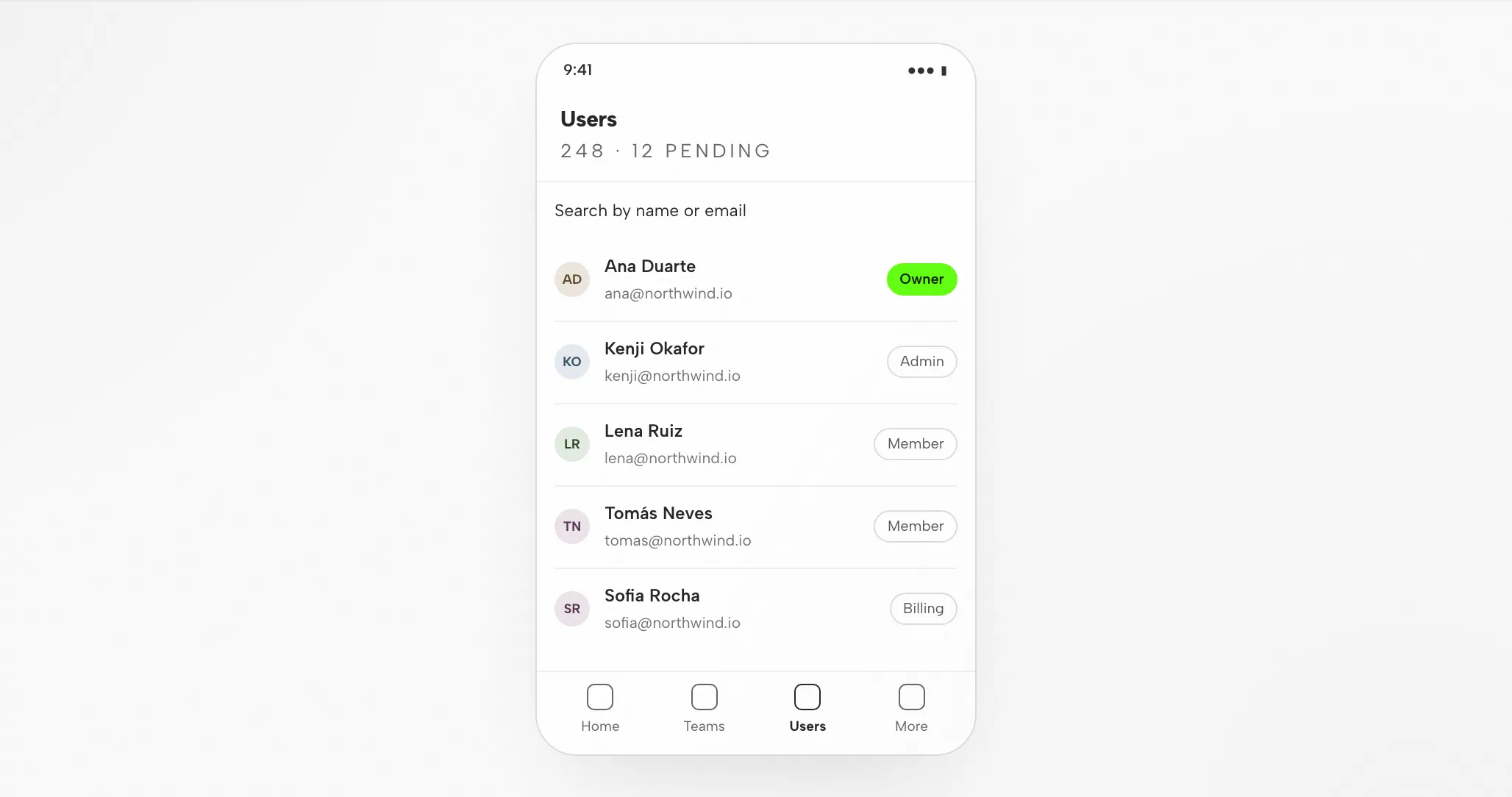
One design task traced from the brief and constraints you hand over to the artifact that returns—and the checks you still run before calling it done. The interface below is illustrative, built for this page; it is not a recorded DeepSeek Harness run.
BriefCreate the users page for an admin console: a searchable table covering role, team, status, and last active, plus bulk actions and pagination. Use the console skill through a reusable profile. Desktop and phone.
data-od-id hooksYou write the brief, choose the design system, and set the acceptance criteria.
DeepSeek Harness plans the layout, writes the HTML, CSS, and JavaScript, then revises on request.
OpenDesign supplies the design system and skill, renders the preview, and keeps each version as a project file.
Before handoff, check visual hierarchy, 8px-grid spacing, both breakpoints, and every interaction.
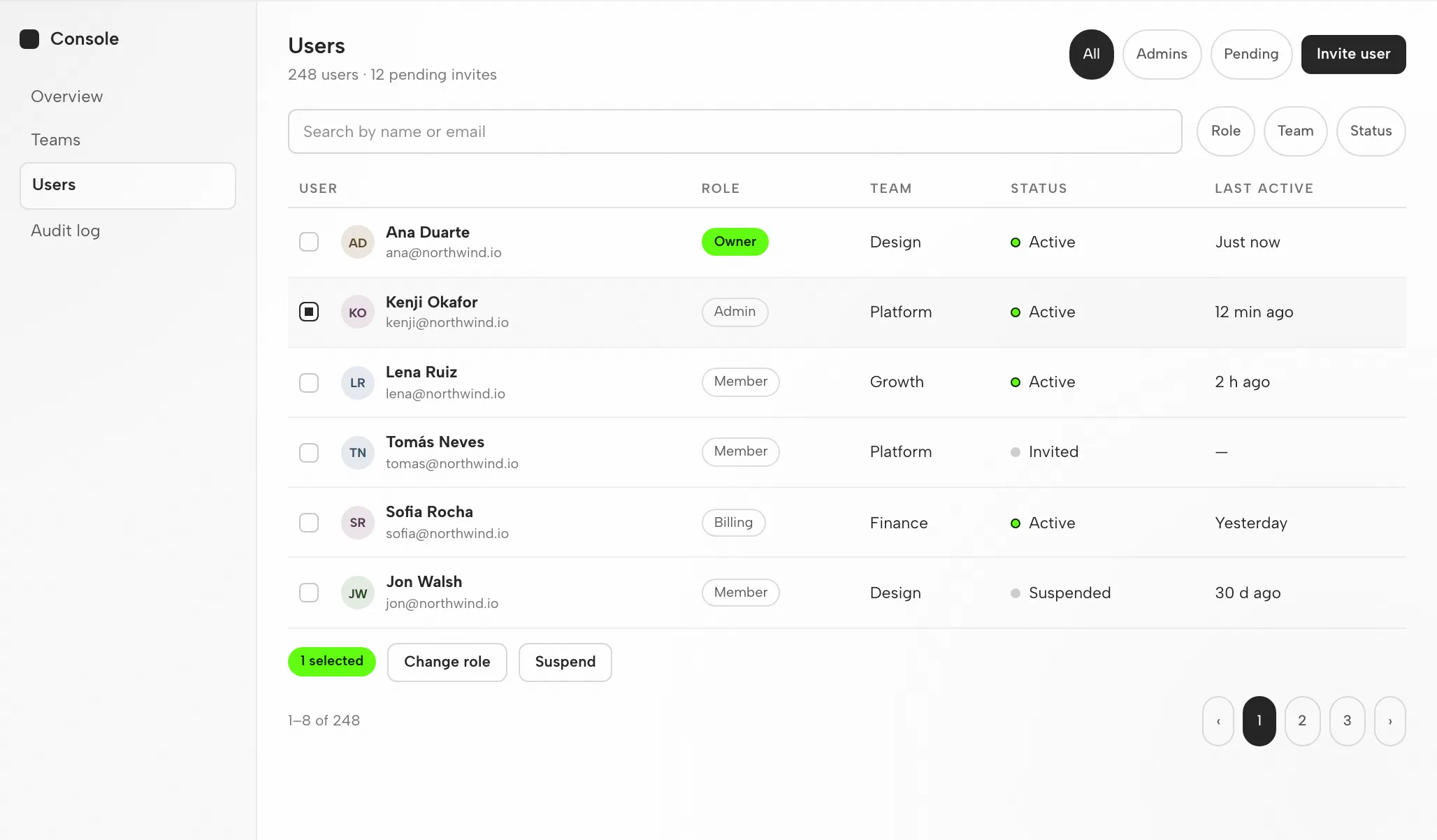
Toolbar, table, and pager align to the 8px grid; fixed column widths keep rows from jumping.
Name and role lead; the accent appears only on the owner role.
The table turns into a list showing name, email, and role; filters move into a sheet.
Search, filter by role, select two rows, run a bulk action, then page forward.
Fit
Compatibility
This page addresses DeepSeek Harness when OpenDesign’s desktop app is the connection point. References published as of 6 September 2026 were consulted.
DeepSeek Harness (`dsh`) is DeepSeek AI’s official open-source agent harness. Models, tools, sessions, permissions, filesystems, skills, subagents, and UI are assembled as Cordis plugins by its local Web UI and headless runner. The focus here is designing interfaces with DeepSeek Harness inside OpenDesign, not operating DeepSeek Harness’s own interface. Which agents OpenDesign can use is recorded in its setup notes.
A DeepSeek API key, or another provider credential already configured. In OpenDesign, go to Settings → Models & providers → Local CLI and rescan. No quota or price is promised on this page.
Desktop builds are listed on the download page. Node.js and pnpm requirements from the source quickstart matter when running from source; they do not apply to a desktop package install. The minimum DeepSeek Harness version compatible here has not been verified.
Use the connection steps your installed version displays, then give DeepSeek Harness one modest task. Check that DeepSeek Harness carried it out and that the artifact can be opened. Merely downloading does not prove the connection works.
Start with the desktop app
Start by downloading; finish the DeepSeek Harness setup that matches your installed version; then verify one small result. Following this route does not require building OpenDesign from source.
Pick the installer built for your machine, install it, and launch the app.
Download OpenDesignUse the DeepSeek Harness instructions that ship with the version you installed. In OpenDesign, open Settings → Models & providers → Local CLI and choose rescan.
deepseek-ai/deepseek-harnesscurl -fsSL 'https://open-design.ai/install-dsh.sh?version=1' | shTaken from the DeepSeek Harness setup notes in the published guide; verify the current command against the vendor documentation.
Keep the brief modest, which lets you judge the entire loop, one revision included.
Create a settings screen containing a profile form and a save confirmation. Apply my design rules. Verify it at desktop and mobile widths.
If OpenDesign will be run from source, use the technical quickstart instead.
The DeepSeek Harness design workflow
This walkthrough follows the admin users table from brief to reviewed file. Each step names your input, DeepSeek Harness's work, OpenDesign's contribution, and what you verify.
A short brief in plain language — three to six lines. State who uses the screen, what it must accomplish, and which platforms matter.
A design system plus a few non-negotiables. That combination is what keeps the output on-brand instead of generic.
DeepSeek Harness produces one self-contained HTML file — layout, styles, interactions, and stable hooks.
Inside OpenDesign, the file renders at the widths you requested. This is the point where the design gets judged.
data-od-id targets so comments and edits can attach to elements.Ask for changes by pointing to elements in the preview. Each revision arrives as a new file; nothing is overwritten without a trace.
Resources
Tutorials, docs, and step-by-step walkthroughs for designing with DeepSeek Harness, as listed in the published guide.
Artifact types DeepSeek Harness can generate in OpenDesign, with one skill per type.
Brand tokens and components you bind before DeepSeek Harness generates any output.
Starting points for decks, landing pages and product screens.
Design plugins built for the Harness, each with its own setup notes.
Limitations
FAQ
& ([scriptblock]::Create((irm 'https://open-design.ai/install-dsh.ps1?version=1')))curl -fsSL "https://open-design.ai/install-dsh.cmd?version=1" -o "%TEMP%\install-dsh.cmd" && call "%TEMP%\install-dsh.cmd"Implement the account dashboard in React + TypeScript.
Reuse the components and tokens named in AGENTS.md and DESIGN.md.
Use a 240px sidebar, a 12-column content grid, and the documented
mobile navigation pattern. Include loading, empty, error, and focus states.
Run the app and existing UI checks, inspect desktop and mobile breakpoints,
and report the exact files and states you verified.Create a polished product landing page in this workspace.
Use DESIGN.md, AGENTS.md, and the installed frontend skill as the visual contract.
Reuse the project tokens and components; include desktop and mobile states.
Run the app, inspect the rendered result, fix visible spacing and hierarchy issues,
and leave the final HTML and assets in the project for OpenDesign to preview.